I recently bought a new Windows PC and quickly realized that the workflow is vastly different from macOS. Many of the tools I heavily relied on are simply not available on Windows. However, after installing several third-party applications, many areas I previously considered “hopeless” have seen significant improvement. I feel this list is worth sharing.
First up is the input method. I chose WeChat Input.
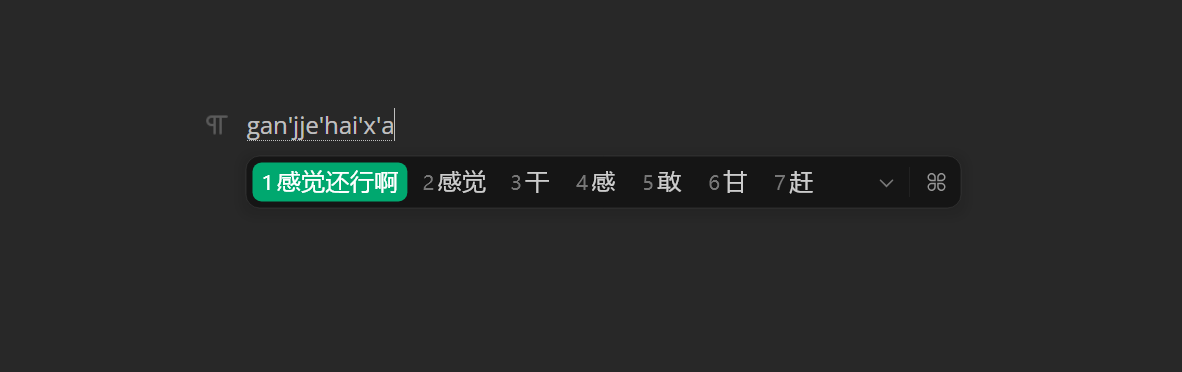
The current version has no ads, and you can enable offline mode to restrict it to local access only. The installer is only about 5 MB, so I assume it is a fairly lightweight application. In my personal experience, its phrase prediction and emoji support feel much closer to the native macOS input method. It works significantly better for my needs than the built-in Windows option.
Next is PixPin, an app that replaces the default Windows screenshot tool.
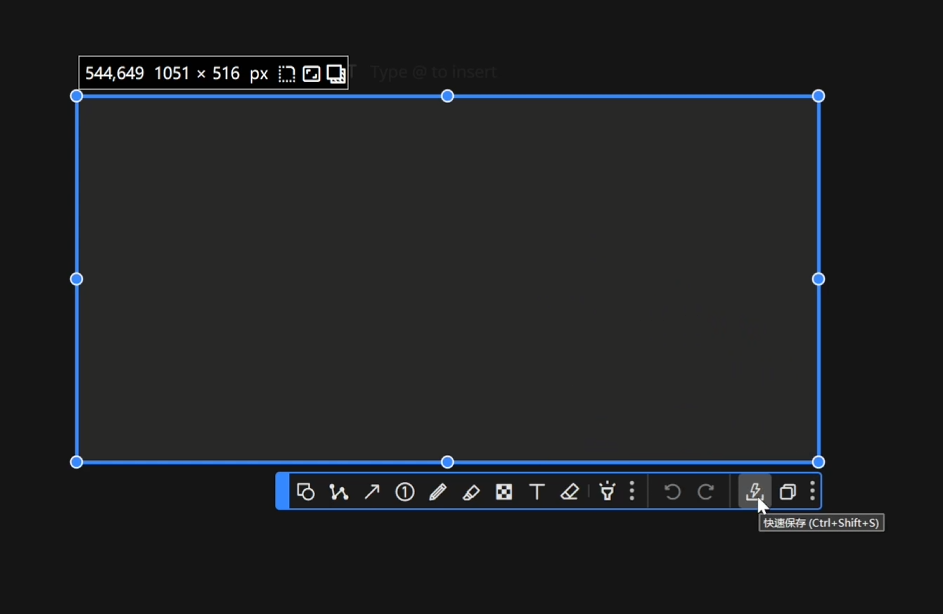
On macOS, an app called iShot has become a tool I cannot live without. Its Option + A shortcut and the ability to perform post-capture editing immediately are crucial to my workflow. The default Windows Snipping Tool really leaves a lot to be desired, and most third-party alternatives I tried were unsatisfying. WeChat’s Alt + A screenshot feature only works when WeChat is running, and I usually keep WeChat open on my Mac instead. Since my Windows machine is primarily a terminal for development and gaming, PixPin perfectly fills this gap: its user experience is strikingly similar to iShot, and its core features are completely free.
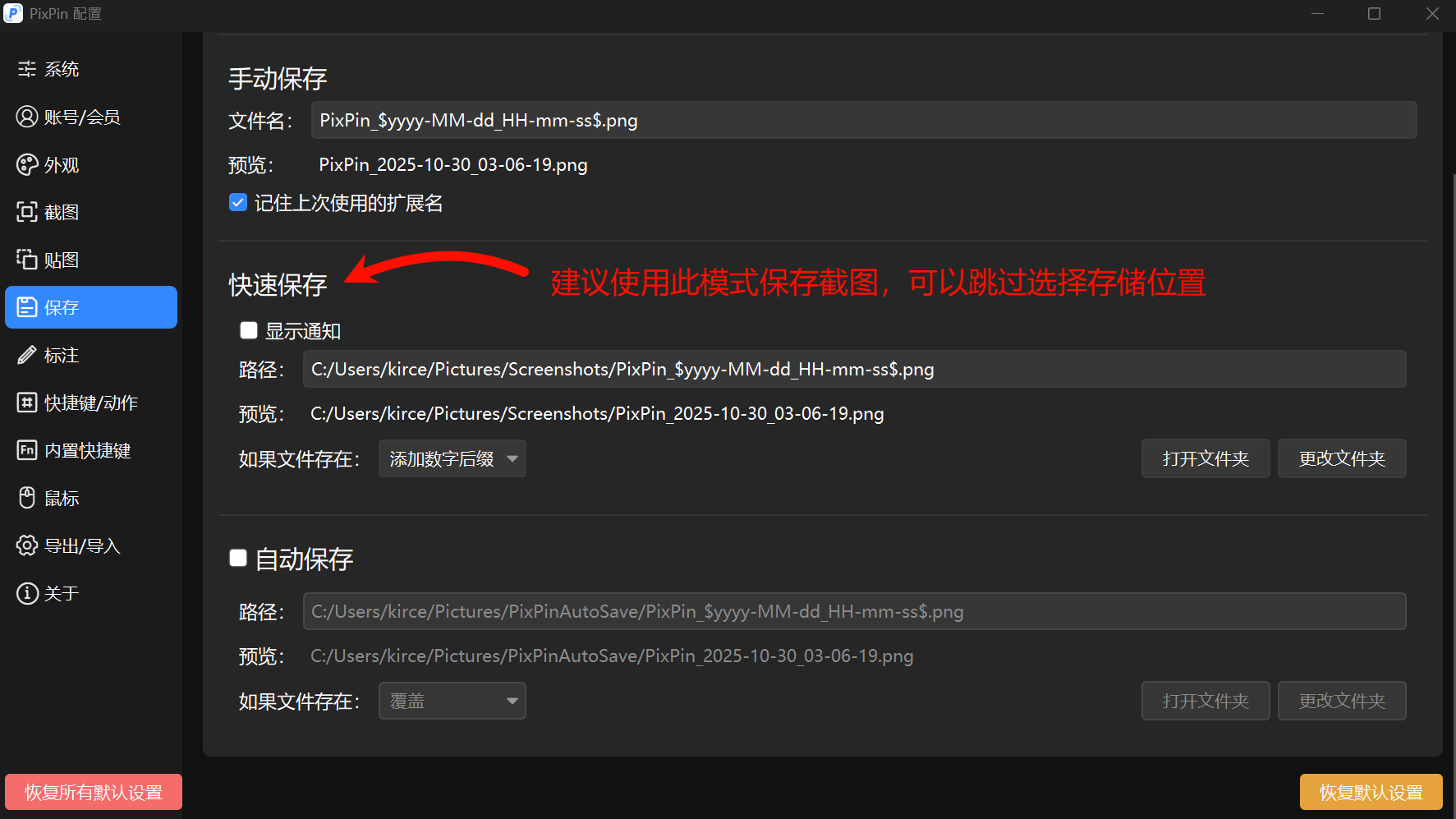
When using it, I personally prefer to enable the quick save feature. The specific settings are as follows:
Next is another utility from Microsoft called PowerToys.
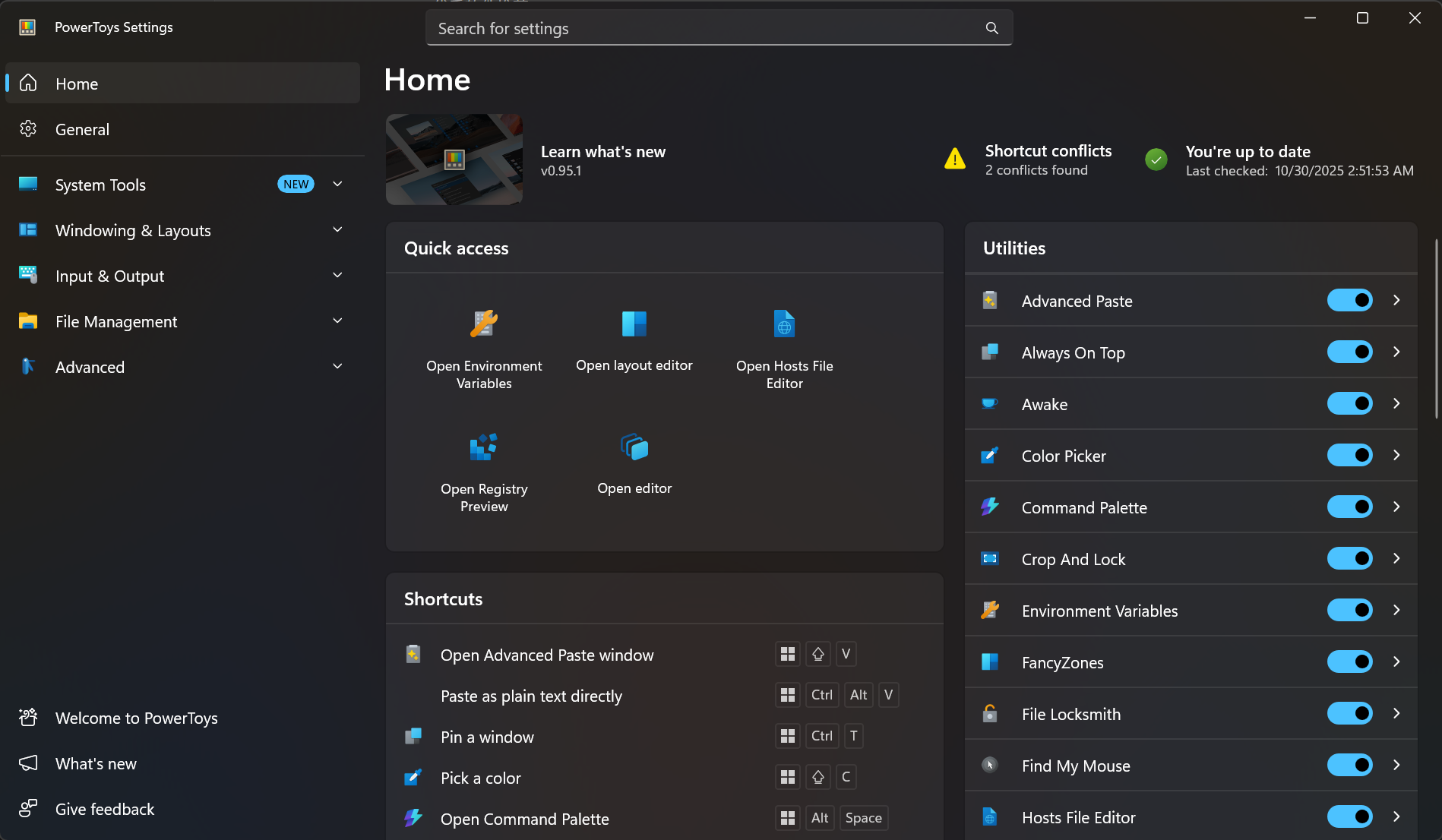
This software is primarily used to deeply customize various Windows functions. For instance, it allows you to globally remap certain shortcut keys to new combinations. In my case, I remapped the Copilot key to trigger Google Gemini. Now, every time I press it, Gemini pops up instantly instead of Microsoft’s own Copilot app.
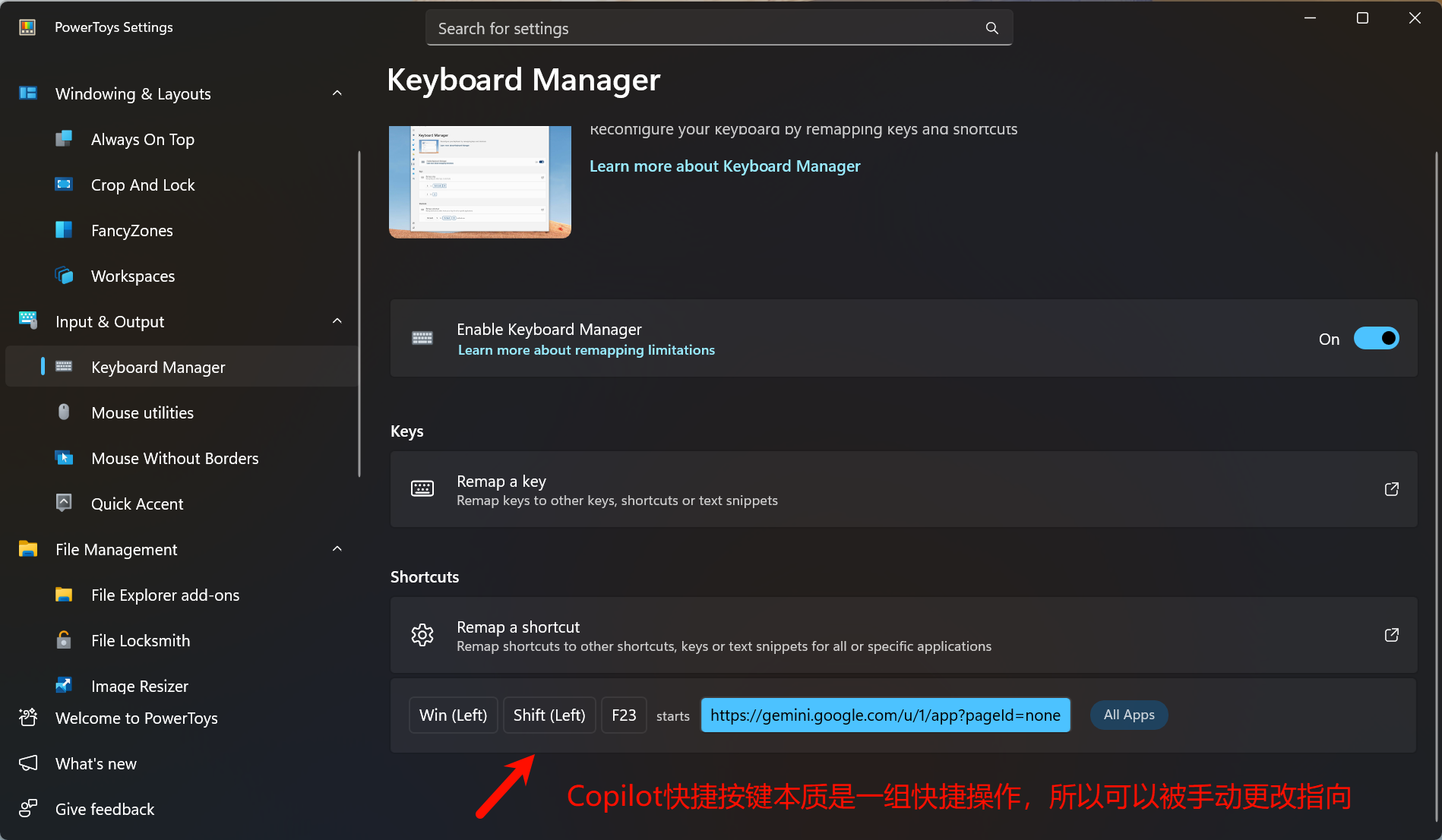
There are many other shortcuts you can map yourself; overall, it’s pretty great.
What I just mentioned is merely the tip of the iceberg of what PowerToys can do. It is capable of far more than just remapping shortcuts. Once I explore it more deeply, I might write a dedicated article to introduce it. One caveat to note: PowerToys is still actively evolving, and I have encountered occasional crashes during use.
Another tool I want to introduce is a Markdown editor for Windows called MarkText.
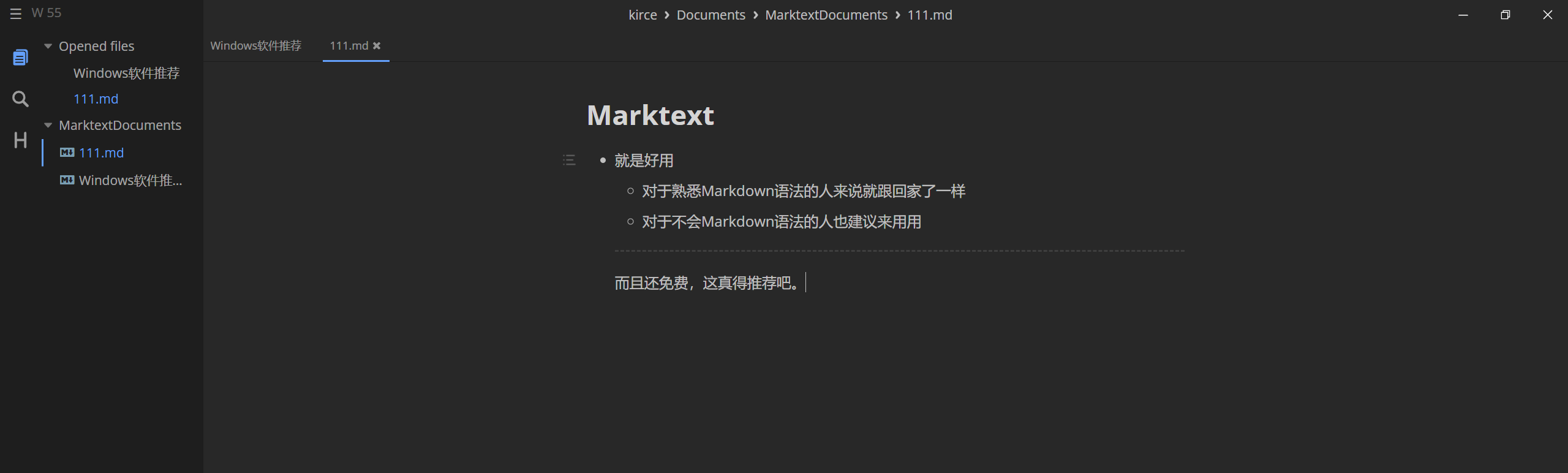
MarkText has been absolutely excellent in my own use. Because I am a heavy user of Bear on macOS, I wanted a similar Markdown app when I switched to Windows. However, likely due to its reliance on iCloud, Bear does not have a Windows version, so I had to find an alternative.
MarkText is also an open-source application hosted on GitHub. Its support for Markdown syntax is incredibly comprehensive. The interface follows a minimalist design and looks gorgeous, with features intuitively and cleanly arranged across the page. Using it to write articles feels almost identical to the experience in Bear—which is especially rare and impressive considering the software is completely free. If you are looking for a lightweight text editor and are familiar with Markdown syntax, MarkText is arguably one of your best options on Windows.
Finally, I’d like to introduce AutoHotkey. It is a Windows scripting tool. One of its use cases is modifying certain system shortcuts via scripts in a single step to better fit your habits. Here is a practical example of AutoHotkey v2 on Windows: using it to reproduce the macOS Caps Lock behavior (switching input languages) on Windows. Credit to this user on the forum for the script idea; I made some modifications based on it (assuming you haven’t already remapped Win+Space to something else; otherwise, just use the script in the link):
#Requires AutoHotkey v2.0
SendMode "Input"

$CapsLock::
{

	CapsError := !KeyWait("CapsLock", "T0.5")

	If CapsError
	{

		if GetKeyState("CapsLock", "T") = 0
			SetCapsLockState("on")
		else
			SetCapsLockState("off")

		KeyWait("CapsLock")
	}
	else
	{
		; Modified part: Simulation Press Win -> Press space -> Release Win
		Send("{LWin Down}{Space}{LWin Up}")
	}
}
If you want the script to start automatically upon booting, simply press Win+R and drag your saved script into the Startup folder.
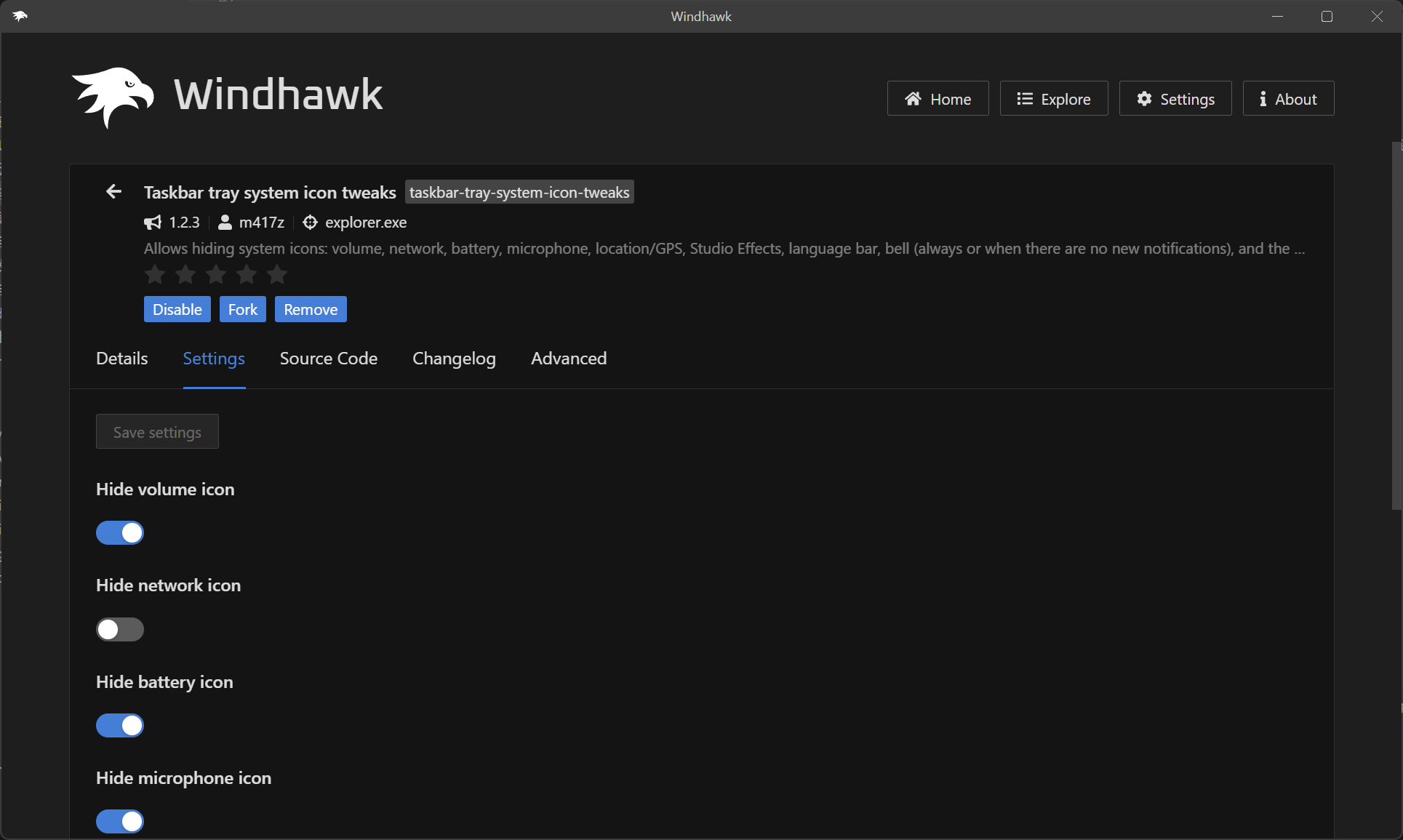
I also have an app recommendation for customizing the taskbar called Windhawk. Similar to Tampermonkey, this software acts as a platform where you can install various mods to deeply customize Windows. For example, I am a bit obsessive about system aesthetics—if I don’t want to see something, I want it gone (I’ll share my macOS solutions for this in a future post). Therefore, I choose to hide certain taskbar icons. However, I found that the Power, Network, and Volume icons are impossible to hide, even by modifying the registry or invoking legacy Windows 10 settings. Windhawk solved this problem for me. The mods I use are included in the screenshot below for your reference.
This article will be continuously updated! Whenever I come across good software, I will add it here. So, there is no real ending, but thank you for reading, and I hope this helps you solve some of your own workflow pain points!